
How to Open a DICOM File from a Hospital CD or USB
Step-by-step guide to opening DICOM files (.dcm) from your hospital MRI/CT/X-ray CD or USB on Mac, Windows, iPhone, and Android — no software install required.
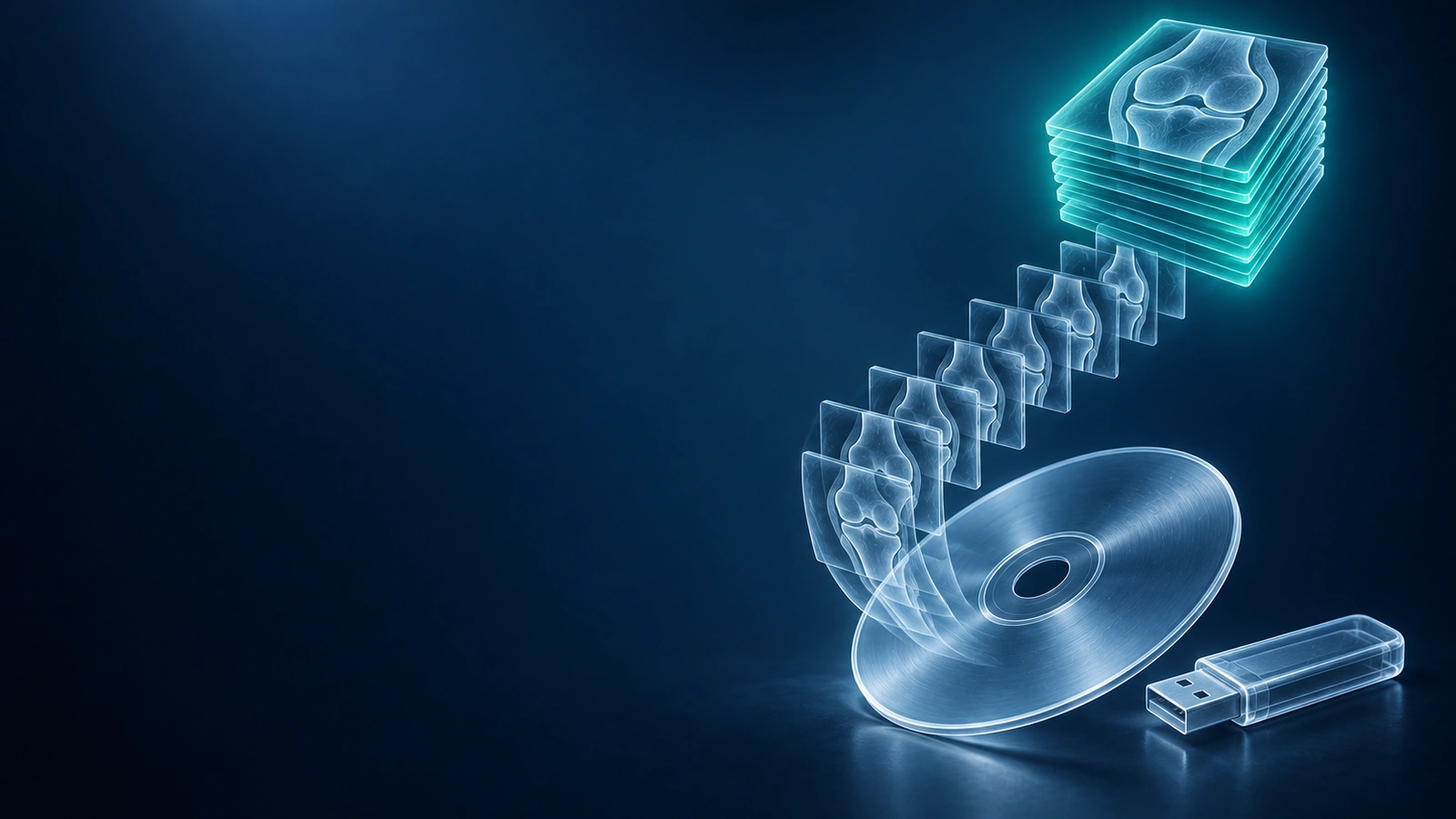
When you leave a hospital or imaging center after an MRI, CT, or X-ray, you are often handed a CD or USB stick with your scans on it. The files on that disc are in DICOM format — the global standard for medical imaging, developed in the 1980s and used by every scanner manufacturer in the world. DICOM files carry the extension .dcm and contain both the pixel data of your images and embedded patient metadata such as your name, scan date, and acquisition settings. A typical knee MRI study contains hundreds of these files, organized into series by sequence type.
The frustrating part: hospital CDs almost always include a built-in viewer, but that viewer is a Windows-only executable that may require administrator rights, an outdated Java runtime, or the disc to be physically in the drive while viewing. On a Mac it does nothing at all. On a modern Windows machine with Java disabled by IT policy it still does nothing. The good news is that you do not need any of that software — a modern browser is all you need, and your files never have to leave your computer.
What's Actually on Your Hospital CD
Before you try to open anything, it helps to know the layout. When you pop the disc into a drive and browse the files, you will typically see a file called DICOMDIR in the root folder. This is the index file — it lists every series and image on the disc, and most DICOM viewers use it to quickly organize the study. Alongside it you will find one or more folders named something like DICOM, IMG, or a string of numbers. Inside those folders are the actual .dcm files, sometimes nested another level deep with names like IMG_0001.dcm or IM-0001-0001.dcm.
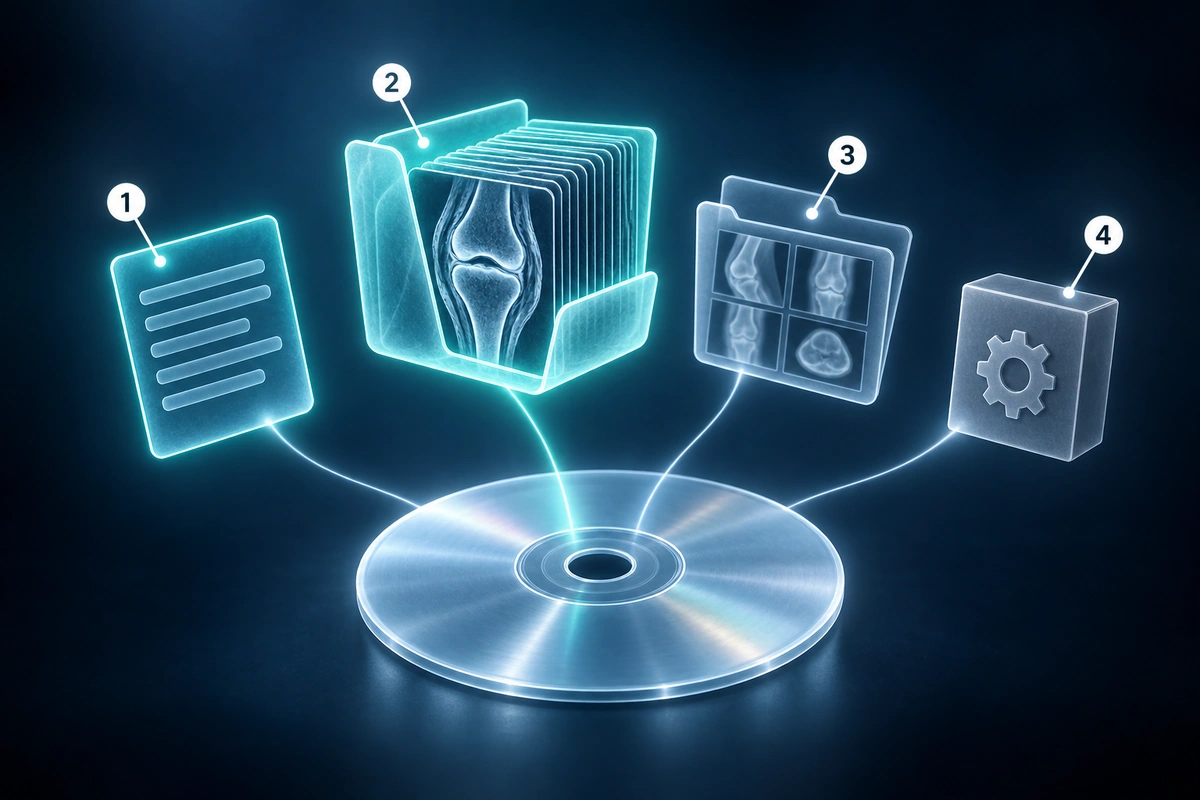
You may also see a folder called JPEG or PREVIEW that contains low-resolution JPEG versions of selected images — these are for quick glance only and are not the diagnostic images. In the root of the disc you will often see one or more .exe files: that is the bundled Windows viewer. You can safely ignore those if you are using a browser-based viewer.
The Easiest Method: Open in Your Browser
The simplest way to view DICOM files on any device — Mac, Windows, Chromebook, or Linux — is to use a browser-based DICOM viewer. You do not install anything. You open a website, drop your files or folder onto the page, and your images appear. The key privacy advantage is that a good browser-based viewer can parse and render the raw files inside your browser tab for viewing. For a deeper comparison, read the no-upload DICOM viewer guide.
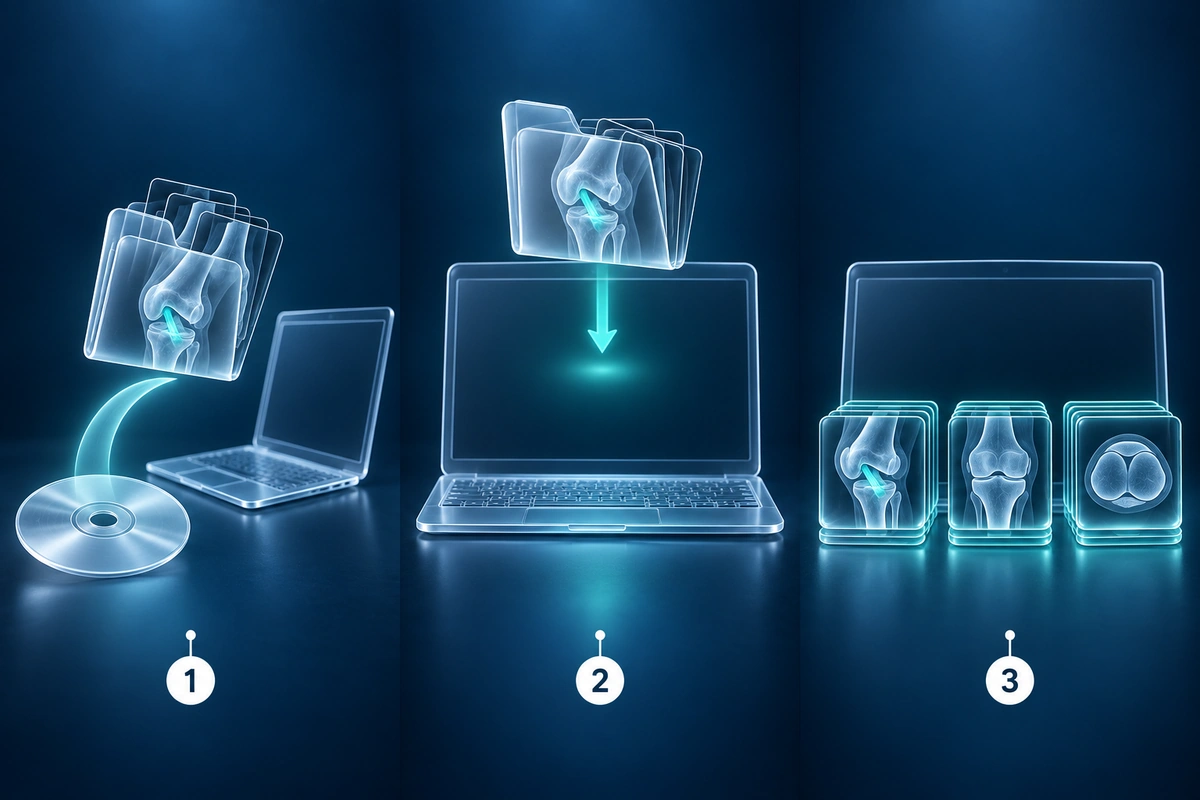
Our free viewer works exactly this way. You can drop an entire DICOM folder, individual .dcm files, or a ZIP archive of your study. Series are organized automatically by sequence type, and you get full windowing controls, slice navigation, and optional AI explanation from rendered images.
Open Free DICOM ViewerHow to Open on Mac
On a Mac, insert the CD using an external drive if your Mac does not have a built-in optical drive. The disc will mount on your Desktop or in Finder. You will see the Windows .exe viewer in the root — ignore it. Open the DICOM folder and copy it to your Desktop or Downloads folder. Once the files are copied off the disc, open your browser and go to the free DICOM viewer. Drag the copied DICOM folder directly onto the viewer page. Your MRI or CT series will load in a few seconds.
If you prefer a native Mac application, Horos is a free professional-grade DICOM viewer for macOS. OsiriX Lite is another option. Both are free, support DICOMDIR import, and offer more advanced tools like multi-planar reconstruction. For most patients who just want to see their images or share them with another doctor, the browser viewer is faster to set up and equally capable.
How to Open on Windows
On Windows, the bundled viewer on the CD sometimes works — it launches, loads the DICOMDIR index, and shows your images. But it is often slow, based on an old Java runtime, and limited in what it can display. If it does not launch or asks for Java to be installed, skip it entirely.
Copy the DICOM folder from the CD to your Desktop, then use a browser-based viewer by dropping the folder onto the page. For a native Windows application, MicroDicom is a free, lightweight option that handles DICOMDIR well. Whatever you do, avoid running random .exe files directly from the disc — copy the DICOM image files only and use a trusted viewer you downloaded from an official source.
How to Open on iPhone or iPad
iPhones and iPads cannot read CDs directly. You have two practical paths. First, if your hospital provides a patient portal (MyChart, HealthMyself, or a similar system), log in and look for an “Imaging” or “Results” section — most modern health systems let you download a ZIP of your DICOM files directly from the portal to your iPhone, which you can then open in a mobile browser viewer.
Second, if you have the files on a USB-C flash drive and an iPad or iPhone 15 or later, you can connect the drive with a USB-C cable. The Files app will show the drive contents. Copy the DICOM folder to your local storage, then open Safari, navigate to the free DICOM viewer, and drop or select the folder. On older iPhones with a Lightning connector, you will need a Lightning-to-USB adapter and a compatible flash drive.
How to Open on Android
Android handles external drives well through USB OTG (On-The-Go) adapters. If your Android phone supports USB OTG, you can plug in a flash drive with your DICOM files using a USB-C or Micro-USB adapter. Open the Files app, copy the DICOM folder to internal storage, then open Chrome or Firefox and navigate to the free DICOM viewer to load your files.
As with iPhone, the easiest path is often through your hospital patient portal. Download the ZIP of your study directly to your phone through the portal, extract it using a file manager app like Files by Google, and open the extracted DICOM folder in the browser viewer. No separate DICOM app required.
If All Else Fails: Ask the Hospital Patient Portal
CDs are an aging delivery method. Every modern hospital and imaging center is legally required in most countries to provide you with access to your images in digital form. Log in to your patient portal and look for an “Imaging,” “Medical Records,” or “Test Results” section. You can usually request a digital download link for your DICOM study, which arrives as a ZIP file you can open anywhere.
If the portal does not offer direct DICOM download, call the radiology department directly and ask for a “DICOM export” or “digital image delivery.” Many centers will email you a secure link within a day. This approach bypasses the CD entirely and gives you a file that is easy to share with any specialist.
Common Problems and Fixes
The CD does not read or produces errors: try the disc in a different optical drive. Hospital CDs are often burned on older equipment and may have surface scratches. A different drive sometimes reads a disc that another refuses. If the disc is physically damaged, the imaging center can usually reburn it for free.
There is no DICOMDIR file: this is fine. Most DICOM viewers, including browser-based ones, can load individual .dcm files directly without a DICOMDIR index. Simply select all the .dcm files in the folder and drop them onto the viewer.
The .dcm files will not open with a double-click: DICOM files are not image files in the normal sense. Your operating system does not know what application to use for them. You need a DICOM viewer — either a browser-based one or a desktop app. Double-clicking will fail until you associate the .dcm extension with a viewer.
The ZIP is too large to email: a typical knee MRI contains 50–300 MB of data; a full spine or brain MRI can reach 500 MB–1 GB. Email attachments are limited to 20–25 MB on most services. Use a file-sharing service like Google Drive or WeTransfer to share the full study with another doctor, or ask your new provider if they have a secure portal where you can upload the study directly.
Ready to view your DICOM files? Our free browser-based viewer opens .dcm files, ZIP archives, and entire DICOM folders — with no install, no account, and no server upload. Files stay on your device.
Open Free DICOM ViewerFor the full list of file types, archives, and DICOM transfer syntaxes our viewer handles, see supported formats.
Key Takeaways
- DICOM (.dcm) is the universal standard format for hospital MRI, CT, and X-ray images — every scanner brand uses it
- Hospital CD viewers are Windows-only executables that frequently fail on modern machines; a browser-based viewer is a simpler and more reliable alternative
- A browser-based DICOM viewer requires no installation, works on Mac, Windows, iPhone, and Android, and can keep raw scan files in your browser for viewing
- The DICOMDIR file is an index of the study — handy but not required; viewers can load individual .dcm files without it
- If a CD is damaged or unreadable, your hospital can reburn it or provide a digital download link through the patient portal
- Compatible DICOM series may also support MPR or 3D volume viewing, depending on slice spacing and scan quality
- A typical MRI study is 50–500 MB — too large for email; use a secure file-sharing service or hospital portal to send images to another doctor
Frequently Asked Questions
Do I need to install software to view my DICOM files?
No. A modern browser is all you need. Browser-based DICOM viewers parse and render .dcm files entirely inside the browser tab using JavaScript and WebAssembly. You do not need to install Java, download any application, or create an account. Just open the viewer page and drop your files onto it.
Is it safe to open my medical images on a website?
It depends on the viewer. A browser-based viewer that processes files locally — where all parsing happens in your browser tab and nothing is transmitted to a server — is completely safe. Our free viewer works this way: your files never leave your device. Avoid any site that asks you to upload your DICOM files to its servers unless you have reviewed its privacy policy and understand how your data is stored and who can access it.
Can I print my MRI images from a DICOM viewer?
Yes. Most DICOM viewers let you take a screenshot or export the current view as a JPEG or PNG, which you can then print normally. For a proper radiological print with correct scale and patient labels, you need a DICOM print function (available in professional desktop apps like Horos or OsiriX). For sharing with a doctor, exporting a screenshot or saving the view as an image is usually sufficient.
Can I email my DICOM files to another doctor?
You can, but DICOM studies are usually too large for standard email (50–500 MB is typical). Most email providers cap attachments at 20–25 MB. A better option is to ZIP the DICOM folder and share it via Google Drive, Dropbox, or WeTransfer, then send the link. Alternatively, ask the receiving doctor's office if they have a secure patient portal or imaging upload link — many specialists prefer this because it keeps the full diagnostic quality intact.
What is the DICOMDIR file and do I need it?
DICOMDIR is an index file that lists every series and image in the study, along with metadata like modality, series number, and patient information. It allows viewers to quickly organize the study without reading every .dcm file individually. However, it is not required — if your disc or folder does not contain a DICOMDIR file, simply select all the .dcm files in the folder and load them directly. Most viewers, including browser-based ones, handle this case automatically.
Once you can see your images, you may want to understand what you are looking at. Our guide on how to read a knee MRI walks through the anatomy visible on each sequence, explains what radiologists look for, and helps you follow along with your radiology report.
Related Articles
Learn to understand your knee MRI report, common sequences, and what key findings mean for your diagnosis.
Compare browser-based DICOM viewing, cloud upload viewers, and desktop apps so you can open MRI, CT, and X-ray files with the right privacy tradeoffs.
Understand 3D DICOM viewing, MPR reconstruction, and browser volume rendering for MRI, CT, and CBCT scans, including privacy and scan compatibility limits.
Related Conditions
Ready to analyze your imaging? Upload your MRI or X-ray for AI-powered analysis
Upload your MRI or X-ray DICOM files for private, AI-powered analysis. 4 models analyze independently — all data stays in your browser.
Start AnalysisMedical Disclaimer: This page is for informational and educational purposes only. It does not constitute medical advice, diagnosis, or treatment. AI-generated analysis may contain errors. Always consult a qualified healthcare professional for medical decisions. Full Disclaimer