
Private DICOM Viewer: No Upload Browser Viewing
Compare browser-based DICOM viewing, cloud upload viewers, and desktop apps so you can open MRI, CT, and X-ray files with the right privacy tradeoffs.
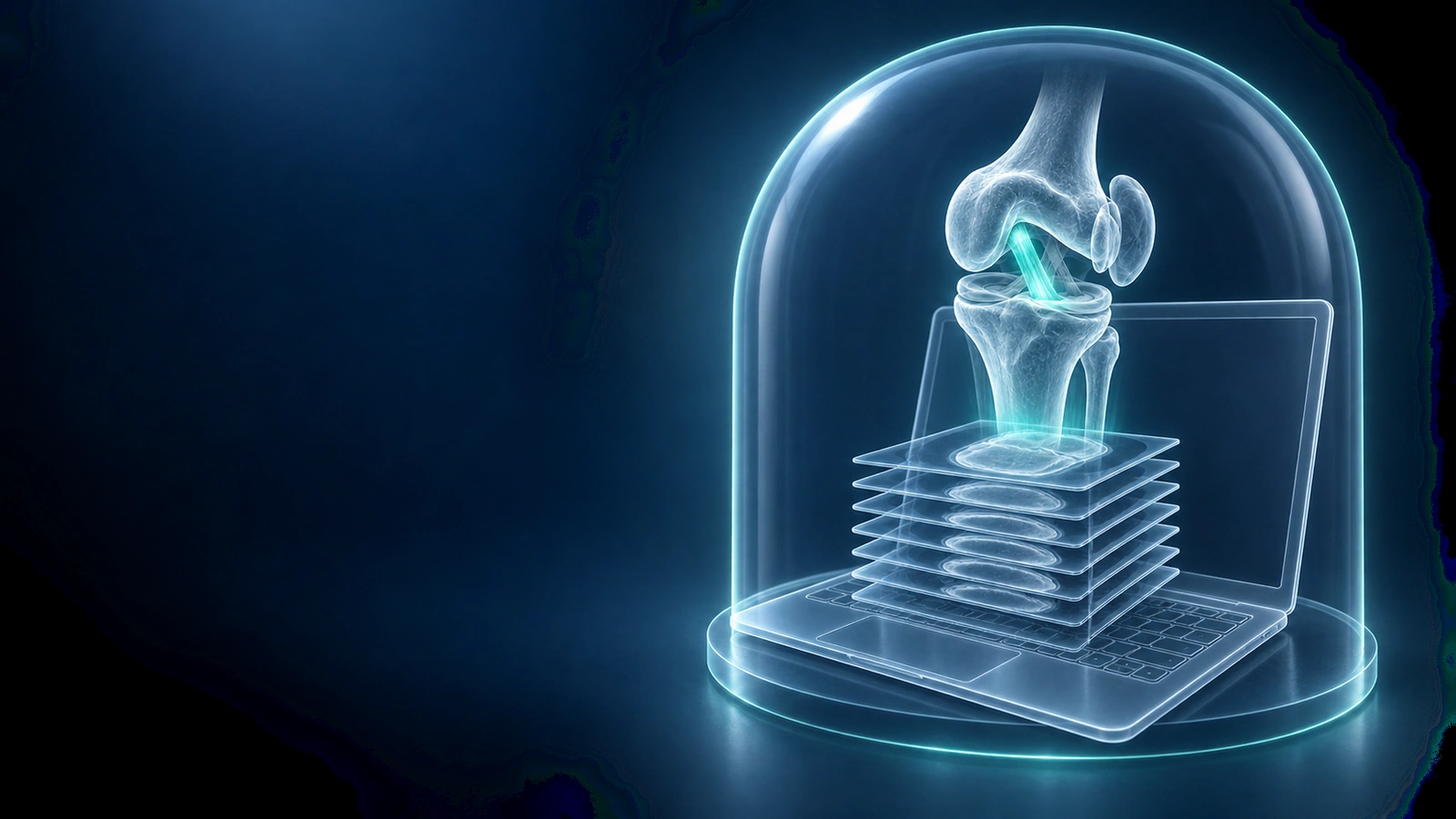
A private DICOM viewer should answer one practical question first: do the original medical image files need to leave your device just so you can view them? For many MRI, CT, X-ray, and CBCT studies, the answer can be no.
Browser-based viewing can parse DICOM files locally, organize series, render slices, and show basic tools without installing hospital CD software. Optional AI analysis is a separate step that uses rendered images and minimal context when you request it.
Three Ways to Open DICOM Files
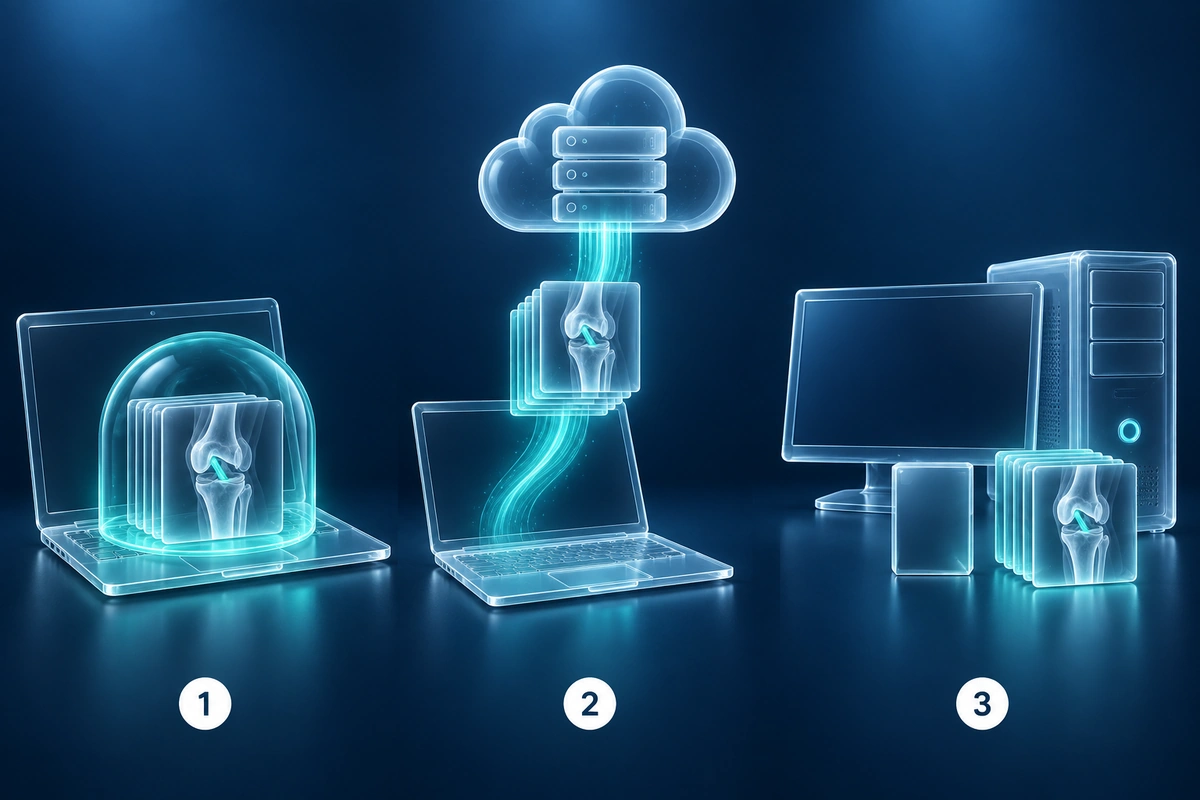
| Viewer type | How it works | Privacy tradeoff | Best fit |
|---|---|---|---|
| Browser local viewer | Parses and renders files inside the browser tab | Raw files stay local for viewing | Fast personal review without installing software |
| Cloud upload viewer | Uploads the study to a remote server for processing or sharing | Requires trusting the service with the full study | Collaboration, storage, sharing, or radiology workflows |
| Desktop DICOM app | Installs a native viewer on your computer | Files can stay local, but setup and permissions vary | Advanced tools, professional workflows, and large studies |
What No Upload Means
For viewing, no upload means the original .dcm files, DICOMDIR, ZIP archive, or folder are read by code running in your browser. The app can build a local series list, decode supported transfer syntaxes, and render images to the screen without sending the raw study to a server.
It does not mean every feature is offline. AI explanation, payment, feedback, and some support workflows may contact a server. The important distinction is that local viewing does not require uploading the original medical imaging files.
Why Browser Viewing Helps Patients
Hospital CDs often include a Windows-only viewer that fails on Mac, modern managed laptops, or devices without a disc drive. A browser viewer avoids old Java plugins, administrator permissions, and unknown executable files from a CD.
It also helps when you only need to inspect the study before an appointment: confirm that the files open, find the relevant MRI series, check whether the scan includes a report PDF, and prepare questions without installing anything.
Open the free DICOM viewerWhen Cloud Upload Is Still Useful
Cloud upload is not automatically bad. It can be necessary when a clinician needs remote access, a second opinion service requires the full study, a hospital portal receives outside imaging, or a team needs persistent sharing and annotations.
The question is consent and purpose. If you are only viewing your own scan, local browser rendering is often enough. If you want a clinical second opinion, you should expect to share the full original study through a trusted medical workflow.
Formats to Check Before You Start
- DICOM files with .dcm, .dicom, .ima, or no extension
- DICOMDIR indexes from hospital CDs or DVDs
- ZIP or TAR archives containing DICOM folders
- MRI, CT, X-ray, and CBCT studies with supported transfer syntaxes
- Report PDFs or screenshots as supporting files, not diagnostic DICOM series
Safety Checklist Before Sharing
- Know whether you are viewing locally, uploading for AI, or sharing a full study
- Use a trusted device, especially for large medical folders from a hospital CD
- Do not run unknown executables from old imaging discs
- Keep personal identifiers out of optional notes unless needed for your care
- Use a clinician or radiologist for diagnosis and treatment decisions
Key Takeaways
- A no-upload DICOM viewer can parse and render raw files inside your browser
- Optional AI analysis is separate from local viewing and uses rendered images
- Cloud viewers are useful for sharing, collaboration, and clinical workflows
- Desktop apps remain useful for professional tools and very large studies
- Choose the workflow based on privacy, purpose, and whether a clinician must review it
Frequently Asked Questions
Can I open DICOM files without uploading them?
Yes. A browser-based local viewer can parse supported DICOM files on your device for viewing. Features such as optional AI explanation may use rendered images and limited context when requested.
Is a browser DICOM viewer safer than a hospital CD viewer?
It can be simpler and safer than running unknown legacy executable files from a disc. You should still use a trusted website, trusted device, and clinician review for medical decisions.
Does no upload mean no internet is used?
No. The page may load over the internet, and optional services can contact servers. No upload specifically means the original DICOM files do not need to be sent away for basic viewing.
Related Articles
Step-by-step guide to opening DICOM files (.dcm) from your hospital MRI/CT/X-ray CD or USB on Mac, Windows, iPhone, and Android — no software install required.
Understand 3D DICOM viewing, MPR reconstruction, and browser volume rendering for MRI, CT, and CBCT scans, including privacy and scan compatibility limits.
Learn the difference between a licensed radiology second opinion and an AI MRI report explanation, when each helps, and what questions to ask your clinician.
Related Conditions
Ready to analyze your imaging? Upload your MRI or X-ray for AI-powered analysis
Upload your MRI or X-ray DICOM files for private, AI-powered analysis. 4 models analyze independently — raw scan files stay in your browser.
Start AnalysisMedical Disclaimer: This page is for informational and educational purposes only. It does not constitute medical advice, diagnosis, or treatment. AI-generated analysis may contain errors. Always consult a qualified healthcare professional for medical decisions. Full Disclaimer